Showing posts with label Mac OS X. Show all posts

Sunday, October 13, 2019

AHT Fix - restore the Apple Hardware Test on your (old) Mac

This article applies to you only if you have an old Mac that was released before June 2013. Yes, this article is about old hardware that is still out there. It is even still traded on ebay for exmaple. So I am pleased to announce AHT Fix. The tiny app restores the Apple Hardware Test on older Macs (released before June 2013) where Mac OS X, OS X or macOS has been reinstalled from scratch. Please also have a look at the "Implementation details and credits" in this article.

The Problem

„Apple Hardware Test (AHT) contains a suite of diagnostics that will test the hardware of your computer. […] If your Mac was released after June 2013, you will use Apple Diagnostics rather than Apple Hardware Test (AHT).“ See also https://support.apple.com/en-us/HT201257

If you have reinstalled an older Mac from scratch, the diagnostic tools might no longer be available. If there is content in /System/Library/CoreServices/.diagnostics you are affected. Unless you have the original disks that came with your Mac, there seems to be no way to restore the AHT.

The Solution

AHT Fix. You can grab a copy from https://github.com/jonelo/ahtfix

The application will determine the model of your Mac, query an Apple server, download the appropriate AHT binaries and restore it on your Mac. And once restored you just need to follow the instructions at https://support.apple.com/en-us/HT201257 in order to perform all hardware diagnostics on your Mac.

Note: Starting with El Capitan (OS X 10.11) there is a new feature called System Integrity Protection (SIP) that prevents the modificaiton of a number of operating sytem directories by default.
In order to use AHTFix on El Capitan and later you have to disable SIP temporarily.
See also https://www.macworld.com/article/2986118/security/how-to-modify-system-integrity-protection-in-el-capitan.html

System Requirements

  • A Mac, released before June 2013
  • Mac OS X 10.6 or later
  • SIP disabled if you run El Capitan (OS X 10.11) or later
  • An internet connection (any bandwidth)

Implementation details and credits

On https://github.com/upekkha/AppleHardwareTest you find detailed instructions from Claude Becker how to restore the AHT manually. I put those instructions (and a few more) to a bash script so that you can restore the AHT in a comfortable way.

I also would like to thank Apple for hosting the AHT binaries on their servers. That really helps users to restore the AHT on Macs that would be otherwise incomplete.


Sunday, May 28, 2017

Solaris' pargs, penv, pfiles, pmap, pstack, and pwdx on macOS

Three weeks ago I posted Solaris' pargs, penv, pfiles, pmap, and pstack on GNU/Linux and since I am also a Mac user, I thought it could be a good idea to have those commands also on macOS. Here we go ...

function pargs()  { L=$(ps ww $1 | tail -1); echo ${L:27}; }
function penv()   { L=$(pargs $1); C=${#L}; L=$(ps wwe $1 | tail -1); L=${L:27}; echo ${L:$C} | tr ' ' '\n'; }
function pfiles() { lsof -p $1; }
function pmap()   { vmmap $1; }
function pstack() { echo "thread backtrace all" | lldb -p $1; }
function pwdx()   { L=$(lsof -a  -d cwd -p $1 | tail -1); echo /${L#*/}; }

Since there is no access to a proc file system on macOS (at least not by default), both pargs and penv call the ps command and pmap calls vmmap. Furthermore pwdx calls lsof with the current working directory descriptor request in order to get the required info. Since "ps wwe" returns not only the environment variables for the given process but also the program arguments on macOS, we need to strip the program arguments from the output. This has been done by calling pargs, determining the length of that output and cutting that length from the string again before we pass it to the tr command that gives us an environment variable for each line. For blog purposes I have shortened the variable names, L stands for line and C for count.

References:
http://wiki.bash-hackers.org/syntax/pe
http://yongsun.me/2009/01/tips-the-equivalents-of-ldd1-and-pmap1-on-mac-os-x/

Tuesday, March 3, 2015

Finding the OS X version and build information in an Install*OS X*.app

The problem

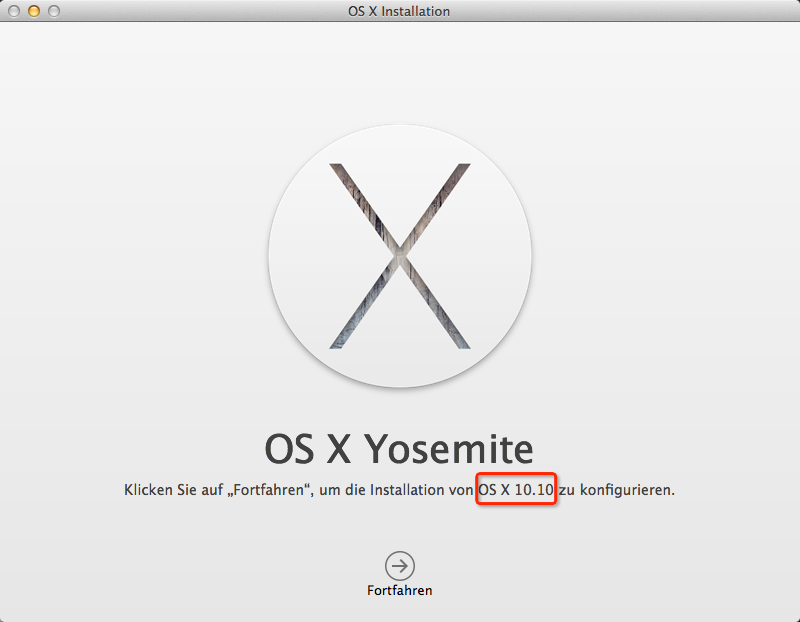
If you have downloaded [Mac] OS X from the the Apple App Store, the installer is stored to the folder called /Applications and the application name is equal for all update releases of a particular OS X version. For example, the Yosemite installer can be found in "/Applications/Install OS X Yosemite.app" and if you open it, it provides information that it is going to install OS X 10.10. Unfortunately it doesn't tell you whether it is going to install OS X 10.10, OS X 10.10.1 or OS X 10.10.2. In other words, the GUI is not suitable to determine the exact OS X version that the installer is loaded with. Both the update number and the build number are not visible. Screenshot below shows the installer of 10.10.2:


You can find the OS X version and build information of your running OS X, see also https://support.apple.com/en-us/HT201260 - IMHO it should be possible to get those details before an actual installation as well.

So the question is how to find the complete OS X product version and build version in an "Install*OS X*.app package?

Eleven code lines to success

The command line tool called sw_vers can print out both the product version and the build version of an installed product. Example from Mavericks:

$ sw_vers
ProductName: Mac OS X
ProductVersion: 10.9.5
BuildVersion:   13F34

The idea is to get access to the sw_vers respectively the version information that is stored in the installer image.

At first we need to mount the InstallESD.img that is stored in /Applications/Install*OS X* Installer.app/Contents/SharedSupport. Note that in the example below, the environment variable APPNAME has to be set to the name of the installer app, in case of Yosemite it is "Install OS X Yosemite.app". Also set DEBUG to /dev/stdout in order to see the output of the mount actions. The $$ will be replaced by the pid of the shell which will be our unique number for the session in order to avoid collisions with other potential volumes.

hdiutil attach "/Applications/$APPNAME/Contents/SharedSupport/InstallESD.dmg" -noverify -nobrowse -mountpoint /Volumes/InstallESD.$$ > $DEBUG

Once that is done, we can mount the BaseSystem.dmg

hdiutil attach "/Volumes/InstallESD.$$/BaseSystem.dmg" -noverify -nobrowse -mountpoint /Volumes/BaseSystem.$$ > $DEBUG

Now we have access to sw_vers. However, calling the /Volume/BaseSystem.<pid>/usr/bin/sw_vers won't give us the results we expect, though. Actually it still gathers version information from the host system and not from the mounted volume. That is because the version number is read from the absolute path called /System/Library/CoreServices/SystemVersion.plist. Below is an excerpt from the SystemVersion.plist on the host system running Mavericks.

<key>ProductBuildVersion</key>
<string>13F34</string>
<key>ProductCopyright</key>
<string>1983-2014 Apple Inc.</string>
<key>ProductName</key>
<string>Mac OS X</string>
<key>ProductUserVisibleVersion</key>
<string>10.9.5</string>
<key>ProductVersion</key>
<string>10.9.5</string>

If we use a changed root environment in order to let read sw_vers the correct file sounds like an easy solution, but tests have shown that it didn't work with the latest Yosemite installer. Well, why not simply mimic the sw_vers functionality by reading the xml file called /Volumes/BaseSystem.$$/System/Library/CoreServices/SystemVersion.plist using bash's regular expression build-in features? That approach is even faster than initiating a changed root environment, root permissions are not required and it is more comfortable than to print out the entire xml:

XMLCONTENT=$(<"/Volumes/BaseSystem.$$/System/Library/CoreServices/SystemVersion.plist")
if [[ "$XMLCONTENT" =~ \<key\>ProductVersion\</key\>[[:space:]]*\<string\>([0-9\.]+)\</string\> ]]; then
    printf "ProductVersion: %s\n" ${BASH_REMATCH[1]}
fi

XMLCONTENT stores the content of the plist file and the first expression in the brackets resp. ${BASH_REMATCH[1] stores the complete product version of OS X.

In order to extract the build version information, we can enter:

if [[ "$XMLCONTENT" =~ \<key\>ProductBuildVersion\</key\>[[:space:]]*\<string\>([0-9A-Z]+)\</string\> ]]; then
    printf "BuildVersion:   %s\n" ${BASH_REMATCH[1]}
fi

If the desired information has been gathered, we just need to unmount the two volumes again in reverse order for cleanup purposes:

hdiutil detach "/Volumes/BaseSystem.$$" > $DEBUG
hdiutil detach "/Volumes/InstallESD.$$" > $DEBUG

The solution

Put the eleven code lines above to a small script called osxapp_vers, set execute permissions to it, set APPNAME to an appropriate value and set DEBUG to /dev/null ...

chmod +x ./osxapp_vers
export APPNAME="Install OS X Yosemite.app"
export DEBUG="/dev/null"

... and you can determine the Installer OS X app's product version and build version just by calling:

./osxapp_vers
ProductVersion: 10.10.2
BuildVersion:   14C109

Note: I have tested the solution above on all my [Mac] OS X downloads from the Apple App Store and I can confirm that this article applies at least to Mac OS X 10.7.5 (Lion) until OS X 10.10.2 (Yosemite).

Mission completed ;-)

Update on  March 4, 2015

The build version is not a hex value and therefore the regular expression has to be ([0-9A-Z]) instead of ([0-9A-F]). I have fixed the bug in the code above.